Mass Updating Pro for Creatio
Complete frequently used steps, without building complex logic, BPMN or code.
Getting started
Mass Updating Pro for Creatio helps users and administrators update field values for multiple records directly from Freedom UI lists.
The product provides a fast bridge from common business needs to bulk data changes without building complex visual logic. Use it for admin cleanup, analyst data correction, post-migration normalization, and quick field value changes.
With Mass Updating Pro, you can select records in a list, choose a field, set a new value, confirm the number of affected records, and apply the update in one action.
New to no-code Creatio features? We recommend that you learn the basic functionality of the Freedom UI interface first. You should be comfortable with lists, filters, folders, record selection, and basic page navigation.
Before you begin
Make sure that the application is installed from Creatio Marketplace. Make sure that the user has an active or trial product license.
Grant access to the mass update action by using the required operation permission.
Key concepts
Mass update action
Update field value is the main action that changes one field value for multiple records from a supported Freedom UI list.
Use this action for planned bulk corrections when the same value must be applied to several records at once.
Target list
The target list is the list where the user starts the action.
For example, if the user starts the action from Accounts, Account records are updated. If the user starts it from Contacts, Contact records are updated.
Record scope
Record scope defines which records are updated.
The scope can come from selected records, applied filters, folders, or the full list when no selection and no filter are applied. Review the confirmation count before applying any update.
Early steps
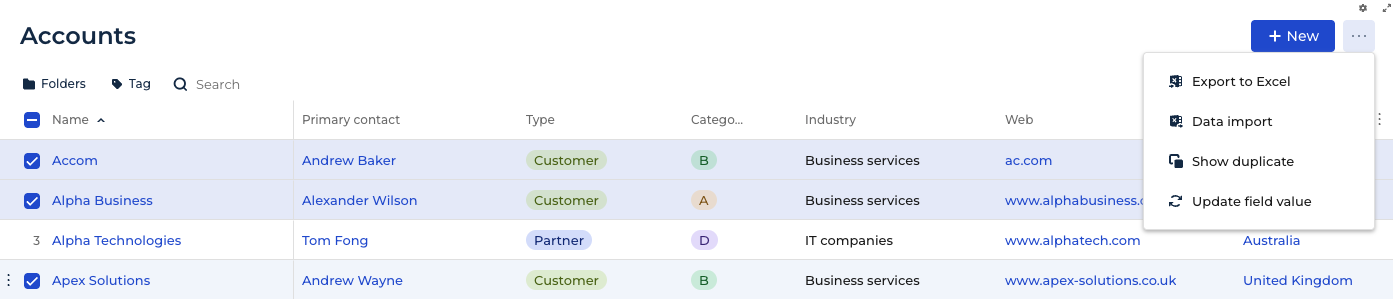
Update two Accounts by selected records
Use this scenario when the user needs to update a small number of known Account records.
Open the Accounts list.
Select any 2 Account records.
Open the Actions menu.
Click Update field value.
Select Name as the field to update. Name is the first text field in the standard Accounts list.
Set New value to Bulk update check.
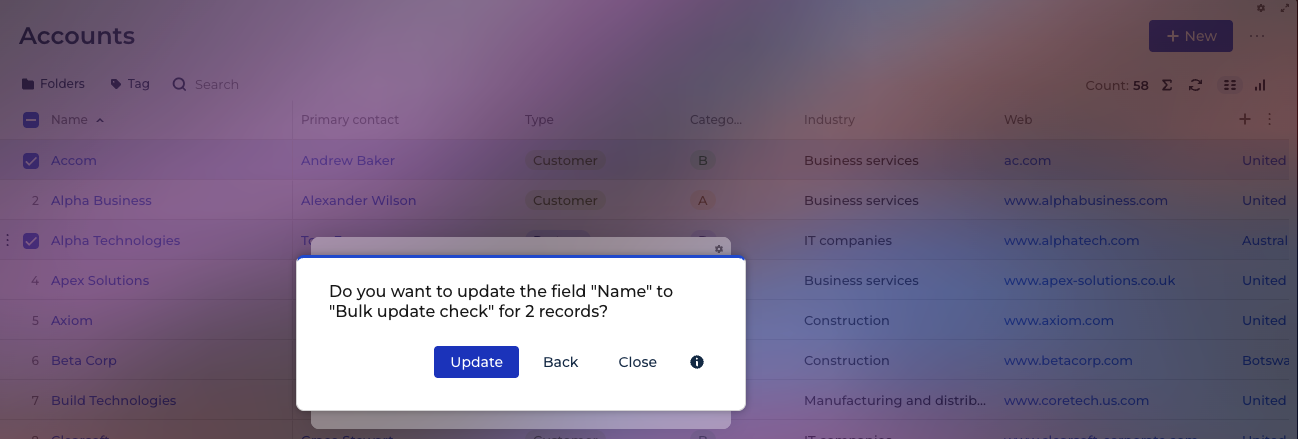
Check the confirmation message and make sure that the number of affected records is 2.
Confirm the update.
Refresh the list manually if the list does not show the new value immediately.
Check the result: only the 2 selected Account records contain Bulk update check in the Name field. Other Account records remain unchanged.
Update a few Contacts by filter or folder
Use this scenario when the user needs to update Contact records that match a saved folder or a temporary filter.
Open the Contacts list.
Apply a folder or filter that returns 4 Contact records.
Do not select records manually unless you need to narrow the scope further.
Open the Actions menu.
Click Update field value.
Select Type as the field to update.
Set New value to Customer.
Check the confirmation message and make sure that the number of affected records is 4.
Confirm the update.
Refresh the list manually if the list does not show the new value immediately.
Check the result: the 4 Contact records from the applied filter or folder contain Customer in the Type field. Contacts outside the filter or folder remain unchanged.
How-to guides
Coming soon.
Technical reference
Permissions
An active or trial product license is required.
The user needs the required operation permission for the mass update action.
The user must log out and log in again after permission changes.
Administrators should grant the permission only to users who are allowed to make bulk data changes.
The user should also have access to the target list and rights to update the target records and fields.
If the license is missing or expired, the action may be unavailable or blocked during execution.
If the product shows a license warning, check the license assignment first, then check operation permissions.
Update flow
The standard flow is:
- The user opens a Freedom UI list.
- The user selects records, applies a filter or folder, or leaves the list unfiltered.
- The user clicks Update field value.
- The modal window opens.
- The user selects a field.
- The user enters or selects a new value.
- The product shows the number of records that will be affected.
- The user confirms the operation.
- The records are updated.
- The product shows a completion notification.
- The user checks the updated records and, if needed, reviews the change log.
One operation updates one field only.
The selected value is applied to all records in the resolved scope.
The confirmation count is the main safety checkpoint before applying the update.
After the operation completes, the current list may still show previous values until the user refreshes the list manually.
Record scope resolution
Selected records: if records are selected manually, the product updates selected records.
Filtered records: if a filter or folder is applied and no records are selected manually, the product updates records returned by the current filter or folder.
Selected records inside a filter: if a filter or folder is applied and records are selected manually, check the confirmation count before you confirm the update.
No filter and no selection: the action can affect all records available in the current list.
If you do not select records or apply filters, the action can affect all records available in the current list. Always check the confirmation count before you confirm the update.
Supported fields and value editors
Field availability can depend on Creatio configuration, field type, user permissions, and whether the field is editable.
Users can update supported editable fields available in the field selector. Do not assume that every field in the object can be updated.
Typical supported groups include:
- Text fields: names, comments, descriptions, phone numbers, emails, web links, and similar values.
- Lookup fields: Owner, Account type, Contact type, Country, City, and other lookup values.
- Dropdown fields: predefined values available in the selected object.
- Date and date/time fields.
- Number fields: integer, decimal, money, and similar numeric values.
- Boolean fields: yes/no or enabled/disabled values.
Some fields may be unavailable or restricted:
- Read-only fields.
- Calculated fields.
- System fields.
- Fields hidden by page configuration.
- Fields restricted by column permissions.
- Fields that are not supported by the product value editor.
- Fields where Creatio validation prevents the selected value.
Audit log
Mass Updating Pro records update operations in a change log for traceability and troubleshooting. Administrators can use it to investigate bulk data changes and review who performed the update, when it was performed, which records were affected, and which field was changed.
The change log should also help administrators compare the previous value with the new value applied by the update.
The change log is intended for audit and troubleshooting. It does not replace a rollback mechanism.
Limitations and safety notes
Mass Updating Pro does not provide automatic rollback, and the audit log is not a recovery tool. Review the confirmation count before every update, especially when no records are selected and no filter is applied because the action can affect the full list.
An active or trial product license and the required operation permission are required. Consider Creatio object, record, and column permissions before granting access.
Some fields may not appear in the selector or may not accept the selected value. Validation rules can block empty or invalid values.
Large updates may take time and may trigger configured business automation, depending on the environment. After an update, users may need to refresh the current list manually to see the new values.