Service Request and ITAM for Creatio
Unify IT service, cost, and asset tracking.
Getting started
Service Request and ITAM for Creatio helps you keep IT Assets always up to date and cover common use cases, such as onboarding or workplace cost control.
New to no-code Creatio features? We recommend that you learn the basic functionality of the Freedom UI interface.
Have you already installed the product and want to start using it now? Go directly to Create your first IT asset or Submit Service Request.
What is an IT Asset, how is it different from a Configuration Item, and why is IT Asset and Configuration Item data always hard to keep up to date?
Before you begin
Make sure that the application is installed from Creatio Marketplace. Make sure that the user has an active or trial product license.
Make sure that the Customer 360° App is installed. Configure the required Website URL system setting.
Demo records are available only if the demo package or trial version is installed.
Key concepts
IT Asset
An IT Asset is a financially valuable component that can help deliver an IT product or service. An IT Asset record helps you manage the asset lifecycle, ownership, cost, warranty, etc.
Typical IT Assets are laptops, servers, software licenses, contracts, and other items that have value for the company.
Service Request
A Service Request is a user request for a standard service action that is already agreed as part of service delivery.
For example, a user can request a laptop, approved software, access to a system, equipment replacement, or help with onboarding.
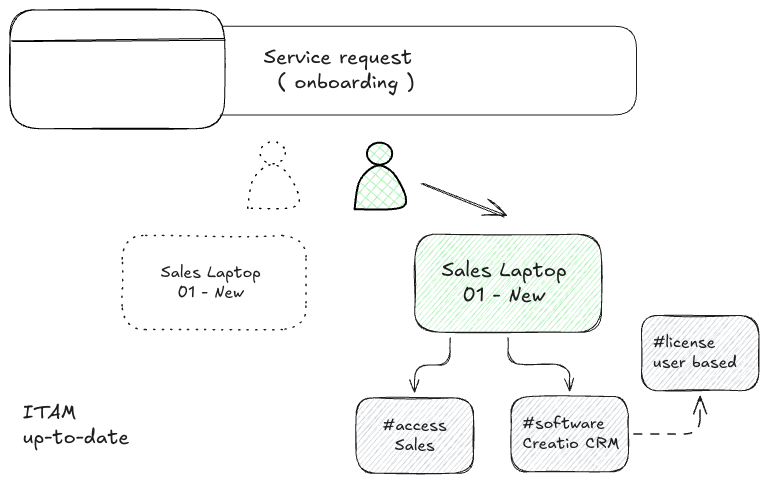
IT Assets and Configuration Items
Yes, an IT Asset and a Configuration Item (CI) can be the same real object, but they are used for different tasks. An IT Asset is important for cost, purchase, warranty, and lifecycle. A CI is important for technical operations.
For example, a laptop is an IT Asset because the company buys it, assigns it to an employee, tracks its cost, warranty, and return.
The same laptop can also be a CI because it is used to deliver IT services. It can be linked to a specific user, software, or access rights.
CMDB
A Configuration Management Database (CMDB) is logical source of truth, designed to cover the broadest possible range of components that make up, support, or affect your IT services.
It stores information about Configuration Items, IT services, IT Assets, relationships between them and so on.
All CMDBs that we develop help IT teams see what components are used, how they are connected, and which entities are related to each other.
Keeping a CMDB up to date is very difficult. Since not all data sources can be fully automated yet and they are still fragmented, your team will need to reconcile the CMDB with environment reality check.
Achieving the right balance between manual work and the value a CMDB delivers to stakeholders is an extremely challenging management task.
Early steps
Create your first IT asset
Open the IT assets section and click New.
In the new record, fill in the basic fields:
- Name:
Sales Laptop 01-New - Category:
Hardware - Subcategory:
Laptop
Go to the Overview tab and, if needed, fill in the general fields:
- Business owner:
Vicky Wong - Support group:
Configuration Management - Purchase date:
28.04.2026 - Description:
Primary laptop for sales employee
After you select Subcategory: Laptop, the Laptop information panel appears. For this first scenario, fill in:
- Model:
HP ProBook 450 G10 - OS:
Windows 11 - Display size:
15.6”
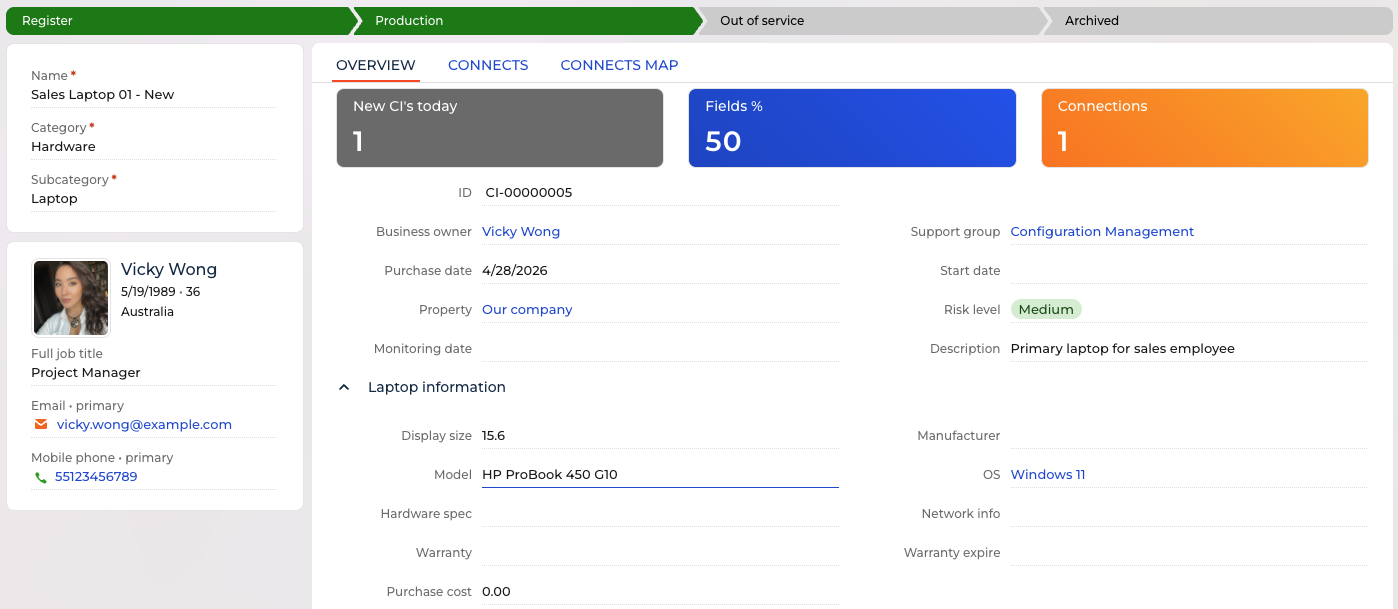
If needed, you can also add Hardware spec, Warranty, Warranty expire, and Purchase cost.
Click Save. The new asset appears in the IT assets section.
Check the result: Sales Laptop 01-New appears in the IT assets list.
Add a connection between IT Assets
Open the IT assets section and click New.
In the new record, fill in the basic fields:
- Name:
Creatio Sales - Category:
Software - Subcategory:
Application
Click Save. The new asset appears in the IT assets section.
Open the Sales Laptop 01-New asset, go to the Connects tab, and in the Connected to configuration items detail, click New.
In the new connection record, the Current CI field already contains the current asset. Specify:
- Related CI:
Creatio Sales - Connection type:
Depends
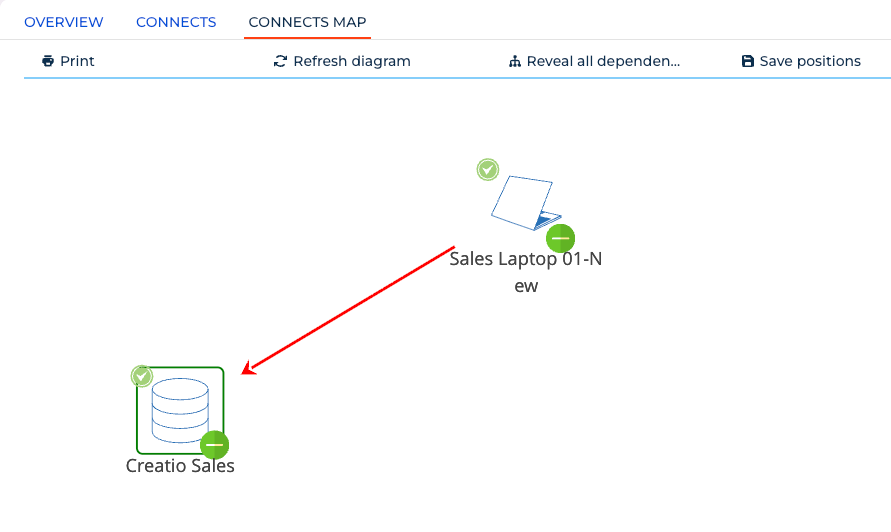
Click Save, then open the Connects map tab.
Check the result: the Sales Laptop 01-New asset shows the connection to Creatio Sales on the Connects tab. The Connects map tab also shows the connection.
Submit Service Request
Open the Service requests section and click New.
In the request window, fill in the fields:
- Service request model:
Onboarding New Employee - Contact:
Vicky Wong
Click Save. The new request appears in the Service requests section.
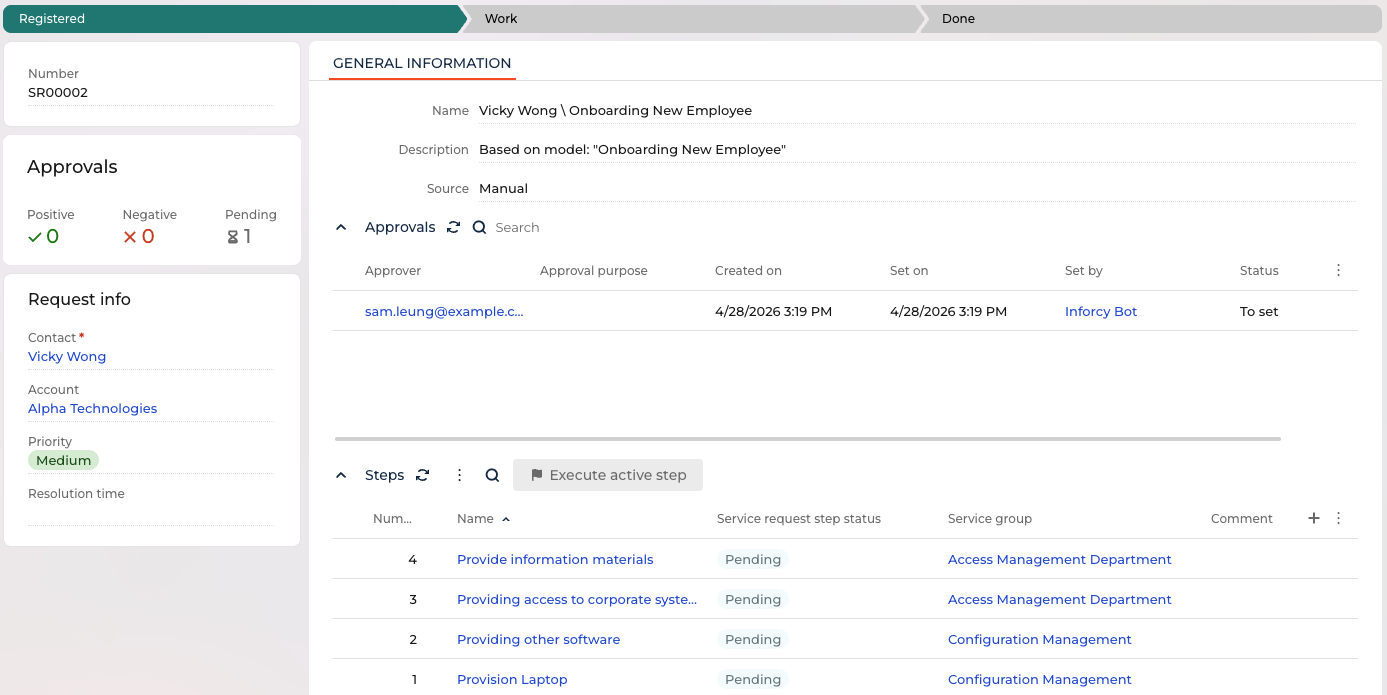
Open the request. Check that the Approvals block contains generated approvals and the Steps block contains generated steps. You have created your first Service request.
Technical reference
Sections of ITAM
IT Assets
Purpose
Use the IT Assets section to register financially valuable IT components and track their lifecycle, ownership, support responsibility, cost, warranty, license, contract, and technical information.
An IT Asset can also work as a Configuration Item in the CMDB. Use CI relationships to show how assets depend on each other, support services, exchange data, or affect other assets.
Flow
[ Register > Production > Out of service > Archived ]
The flow is shown in the Stage progress bar and uses Configuration item status.
Tabs
Overview - contains the main IT Asset fields, record indicators, business owner information, and dynamic information panels. The visible dynamic panels depend on Category and Subcategory.
Connects - contains relationships between the current IT Asset and other Configuration Items. The tab has two details: Connected to configuration items and Connected from configuration items.
Connects map - visualizes CI relationships as a map. The map uses connection types, relation arrow configuration, CI status images, signal images, and subcategory images.
Feed and Attachments - standard Creatio components for record-level discussion and related files.
Common fields
These fields are relevant for all IT Asset records.
| Field | Description |
|---|---|
| Name | Record name shown in IT Asset lists and lookup fields. |
| Category | Top-level IT Asset classification. The selected value filters available Subcategories. See Configuration item category. |
| Subcategory | Detailed IT Asset type. The selected value controls which dynamic information panel is shown on the Overview tab. See Configuration item subcategory. |
| Status | Lifecycle state shown in the Stage progress bar. See Configuration item status. |
| ID | Generated CI identifier used to identify the asset in lists and relationships. |
| Business owner | Contact responsible for the asset from the business side. |
| Support group | Service group responsible for supporting the asset. See Service Groups. |
| Purchase date | Date when the asset was purchased. |
| Start date | Date when the asset started being used or tracked. |
| Property | Account or organizational property related to the asset. |
| Risk level | Risk classification of the asset. See Configuration item risk level. |
| Monitoring date | Date used for asset review, monitoring, or reconciliation. |
| Description | Free-text description of the asset. |
The Overview tab also shows indicators for newly created CIs, field completion percentage, and the number of outgoing CI connections.
Conditional fields
The selected Category and Subcategory define which additional fields are relevant. The common fields above stay the same; the table below lists only the additional fields shown for each Subcategory.
| Category | Subcategory | Additional fields |
|---|---|---|
| Hardware | Workstation | Model, Manufacturer, OS, Hardware spec, Network info, Warranty, Warranty expire, Purchase cost |
| Hardware | Laptop | Display size, Manufacturer, Model, OS, Hardware spec, Network info, Warranty, Warranty expire, Purchase cost |
| Hardware | Display | Size, Model, Manufacturer, Warranty, Warranty expire, Purchase cost |
| Hardware | Server | Model, Manufacturer, OS, CPU, Memory (GB), Storage, IP address, MAC address |
| Software | Application | Vendor, Environment |
| Software | Virtual server | Virtualization platform, Host/cluster, OS, CPU, Memory (GB), Storage, IP address, MAC address, Environment |
| Licenses | User-Based | Type, By users, Purchased quantity, License key, Used quantity, Vendor, Expiration date, Cost |
| Licenses | Server-Based | Type, By servers, Purchased quantity, License key, Used quantity, Vendor, Expiration date, Cost |
| Licenses | Enterprise Agreements | Agreement (ELA), Vendor, Expiration date, Cost |
| Contracts | Support | SLA, Renewal date, Cost |
| Contracts | Professional services | Type, Expiration date, Cost |
| Contracts | Extended warranty | Expiration date, Cost |
| Contracts | Cloud Services | Expiration date, Cost |
| Contracts | SSL certificates | Expiration date, Cost |
For Licenses and Contracts, the page also shows Expiration status. See Configuration item expiration status.
Lookup fields used in conditional panels:
| Field | Lookup |
|---|---|
| Manufacturer | Configuration item manufacturer |
| OS | Configuration item OS |
| Vendor | Configuration item vendor |
| Environment | Configuration item environment |
| Type, for license records | Configuration item licenses type |
| By users | Configuration item by users |
| By servers | Configuration item by servers |
| Type, for contract records | Configuration item contracts type |
Details
Business owner information - shows additional information about the selected Business owner, including job title and communication options.
Connected to configuration items - shows outgoing relationships from the current IT Asset to other Configuration Items. Columns include Current CI, Related CI, and Connection type. See Configuration item connection type.
Connected from configuration items - shows incoming relationships where another Configuration Item is connected to the current IT Asset. The relationship name uses the reverse connection name.
Connects map - shows CI relationships visually. The map uses Configuration item relation arrow configuration, Configuration item connection map image, Configuration item subcategory image, Configuration item status image, and Configuration item signal image.
Related sections
Service Groups - used in the Support group field.
Service Request models - step configurations can define CI relationship actions.
Service Requests - service requests can create steps that work with IT Assets and CI relationships.
Used by
Service Request step configuration uses IT Assets when a step needs to select, create, or update a CI relationship.
The Connects map uses IT Asset classification, status, signal, and relationship setup to render the relationship diagram.
Service Groups use IT Assets indirectly through the Support group field, which defines the team responsible for support.
Service Requests
Purpose
Use the Service Requests section to process user requests for standard service actions. A Service Request is created from a Service Request model and can include approvals, execution steps, responsible service groups, and post-processing actions.
Typical examples include onboarding, software access, laptop provisioning, equipment replacement, and other predefined service actions.
Flow
[ Registered > Work > Done ]
The flow is shown in the Stage progress bar and uses Service request status.
Tabs
General information - contains the request name, description, source, Approvals detail, and Steps detail.
Request info block - shows the requester and execution context: Contact, Account, Priority, and Resolution time.
Feed and Attachments - standard Creatio components for record-level discussion and related files.
Common fields
| Field | Description |
|---|---|
| Number | Auto-generated request number. |
| Service request model | Model used to create the request and generate its approvals and steps. See Service Request models. |
| Status | Current request state shown in the Stage progress bar. See Service request status. |
| Contact | Requester or contact for whom the request is processed. |
| Account | Account related to the requester. |
| Priority | Request priority. See Service request priority. |
| Resolution time | Date and time when the request is resolved. |
| Name | Request name. |
| Description | Free-text request description. |
| Source | How the request was created. See Service request source. |
Conditional fields
The Service Request page does not use category-based dynamic fields.
The selected Service Request model defines the generated Approvals and Steps. These records are created from model setup and become visible after the request is saved.
Details
Approvals - shows approval records related to the request. Approval records include approver, objective, creation date, set date, set by, and approval status.
Steps - shows execution steps generated from the selected Service Request model. Columns include Number, Name, Service request step status, Service group, Comment, and Post-process. See Service request step status.
Execute active step - runs the active request step when the current state and user context allow step execution.
Related sections
Service Request models - define which approvals and steps are created for a request.
Service Groups - define the teams responsible for request steps.
IT Assets - can be selected or connected by request steps when the request changes CI relationships.
Used by
Service Request steps use model configuration to execute approvals, assign work to service groups, run post-processes, and create or update CI relationships.
Approvals use the Creatio approval mechanism and are displayed in the Approvals detail.
Service Request source and priority lookups help classify, filter, and report on requests.
Service Request models
Purpose
Use the Service Request models section to configure reusable request templates. A model defines whether pre-approval is needed, which approval contacts are used, which steps are created, which service groups execute them, and which post-processes or CI relationship actions are available.
When a user creates a Service Request from a model, the product uses this setup to generate the request structure.
Flow
This section has no Stage progress bar.
Tabs
General information - contains the model name, Pre-approval needed checkbox, Pre-approval contacts detail, and Steps configuration detail.
Feed and Attachments - standard Creatio components for record-level discussion and related files.
Common fields
| Field | Description |
|---|---|
| Name | Service Request model name shown when users create a Service Request. |
| Pre-approval needed | Defines whether requests created from this model require pre-approval before step execution. |
Conditional fields
Pre-approval contacts are used only when Pre-approval needed is selected.
In step configuration records, Approval contacts are used only when Approval needed is selected.
In step configuration records, Parameter is shown when Post-process is selected.
In connected CI setup, available fields depend on the selected Type of first CI and Type of second CI. See Service request step first connected CI type and Service request step second connected CI type.
Details
Pre-approval contacts - defines contacts who approve requests created from this model. Columns include Contact, Approval purpose, Job title, and Email.
Steps configuration - defines the request steps created from the model. Each step configuration includes Name, Number, Service group, Approval needed, Post-process, and Parameter.
Step approval contacts - defines approvers for a specific step when Approval needed is selected.
Connected CI setup - defines CI relationship actions for a step. Each connected CI setup record includes Type of first CI, Type of second CI, Connection type, Description, Post-process, and Parameter. See Configuration item connection type.
Post-process - references a Creatio process that can run as part of step execution. Use Parameter to pass additional process input when required.
Related sections
Service Requests - use the selected model to create approvals and steps.
Service Groups - used in step configuration to assign execution responsibility.
IT Assets - used when connected CI setup creates or updates relationships between Configuration Items.
Used by
Service Requests use models as the source for generated approvals and steps.
Service Request steps inherit service group, approval, post-process, parameter, and connected CI setup from the model.
Connected CI setup uses IT Asset and CI relationship lookups to define how request execution changes the CMDB.
Service Groups
Purpose
Use the Service Groups section to define teams responsible for supporting IT Assets and executing Service Request steps.
A Service Group is a setup record that groups contacts by responsibility, such as configuration management, access management, infrastructure, security, finance control, or application support.
Flow
This section has no Stage progress bar.
Tabs
General information - contains the group name and Contacts detail.
Feed and Attachments - standard Creatio components for record-level discussion and related files.
Common fields
| Field | Description |
|---|---|
| Name | Service group name shown in lookup fields and step configuration. |
Conditional fields
This section has no conditional fields.
Details
Contacts - lists contacts who belong to the service group.
| Column | Description |
|---|---|
| Contact | Group member. |
| Department | Contact department. |
| Contact email. | |
| Job title | Contact job title. |
Related sections
IT Assets - use Service Groups in the Support group field.
Service Request models - use Service Groups in step configuration.
Service Requests - generated request steps use Service Groups to show the responsible team.
Used by
IT Assets use Service Groups to define support responsibility.
Service Request steps use Service Groups to define which team is responsible for execution.
Service Request execution can use Service Group membership to identify users who belong to the responsible team.
Used Creatio features
Stage progress bar
The Progress bar shows the current case stage of the record and lets users move the record to another allowed stage.

The case setup defines the stage list, order, and available transitions. Creatio can move the record manually or automatically after users complete required or all stage steps.
Creatio shows grouped stages in one slot as a drop-down list.
Attachments
Use the Attachments component to store files related to the record. Users can upload files, drag and drop them into the page, download them by name, and delete them when they no longer need them.
The component supports Gallery and List views. When a user deletes the record, Creatio removes related attachments automatically after the configured deletion delay.
Use attachments for supporting documents and evidence; keep searchable business data in fields.
Feed
Use Feed for record-level discussion and short coordination. The record feed supports posts, comments, rich text, @mentions, and editing or deleting the author's own posts and attachments.
Creatio sends feed notifications when someone comments on your record, mentions you, or likes your post or comment. Creatio marks unread feed notifications as read when the user opens the notification tab.
Use Feed for discussion history, not instead of approvals, tasks, or stage changes.
Tags
Use tags to segment records manually and filter them later. One record can have several tags at the same time.
Use personal tags for individual work, corporate tags for internal shared labels, and public tags only when the same label must be visible to employees and external users.
Use tags for quick grouping and search, not instead of statuses or stages.
Lookups
The product adds lookup entries for IT Asset and Configuration Item classification, CI relationship visualization, specific category and subcategory attributes, and Service Request processing.
IT Assets and Configuration Items
Configuration item category (INFCICategory)
Use this lookup to classify IT Assets and Configuration Items at the top level. The selected category limits the available subcategories and helps the record page show the relevant information blocks.
Product values:
| Position | Value |
|---|---|
| 1 | Hardware |
| 2 | Software |
| 3 | Licenses |
| 4 | Contracts |
Configuration item subcategory (INFCISubcategory)
Use this lookup to define the detailed type of an IT Asset or Configuration Item. Subcategories depend on Configuration item category. The subcategory also controls which additional fields are relevant for the record and which image can be used on the CI connection map.
Product values:
| Category | Subcategories |
|---|---|
Hardware |
Workstation, Laptop, Display, Server |
Software |
Application, Virtual server |
Licenses |
User-Based, Server-Based, Enterprise Agreements |
Contracts |
Support, Professional services, Extended warranty, Cloud Services, SSL certificates |
Configuration item status (INFCIStatus)
Use this lookup to track the lifecycle state of an IT Asset or Configuration Item.
Product values:
| Value |
|---|
Register |
Production |
Out of service |
Archived |
Configuration item connection type (INFCIConnectionType)
Use this lookup to define the semantic type of a relationship between two Configuration Items. The Name column is used for the direct relationship, and the SecondName column is used for the reverse relationship name.
Product values:
| Position | Direct name | Reverse name |
|---|---|---|
| 1 | Uses |
Used by |
| 2 | Depends |
Dependent |
| 3 | Impacts |
Impacted by |
| 4 | Supports |
Supported by |
| 5 | Licenses |
Licensed by |
| 6 | Exchange data with |
Exchange data with |
Configuration item relation arrow configuration (INFCIRelationArrowConfiguration)
Use this lookup to configure how relationship lines are displayed on the CI connection map. Each record links a Configuration item connection type to an arrow color and arrow type.
The CI relationship JSON service reads this lookup by ConnectionType and passes ArrowColor and ArrowType to the connection map module. The map then uses these values to draw the line color, dashed style, and one-way or two-way arrow markers.
Product values:
| Connection type | Arrow color | Arrow type |
|---|---|---|
Depends |
red |
arrow |
Uses |
green |
dashed |
Supports |
green |
arrow |
Licenses |
blue |
dashed |
Impacts |
black |
arrow |
Exchange data with |
grey |
double arrow |
Supported arrow type behavior:
| Arrow type | Result on the map |
|---|---|
arrow |
Solid one-way arrow |
dashed |
Dashed one-way arrow |
double arrow |
Arrow markers on both ends |
If no arrow configuration exists for a relationship type, the map service uses a grey bold arrow as a fallback.
Configuration item connection map image (INFCIConnectionMapImage)
Use this lookup to store images used by the CI connection map. These images are used for default nodes, expand/collapse controls, status indicators, signal indicators, and category/subcategory icons.
Product values include:
| Value | Usage |
|---|---|
Default |
Default CI node image |
Plus |
Expand control |
Minus |
Collapse control |
Signal red |
Signal indicator |
StatusRegister |
Status indicator |
StatusOutOfService |
Status indicator |
icon_HW_Workstation |
Hardware / Workstation icon |
icon_HW_Laptop |
Hardware / Laptop icon |
icon_HW_Display |
Hardware / Display icon |
icon_HW_Server |
Hardware / Server icon |
icon_SW_Application |
Software / Application icon |
icon_SW_VirtualServer |
Software / Virtual server icon |
icon_Licenses_UserBased |
Licenses / User-Based icon |
icon_Licenses_ServerBased |
Licenses / Server-Based icon |
icon_Licenses_Cloud |
Available license/cloud icon |
icon_Licenses_EntAgreements |
Licenses / Enterprise Agreements icon |
Configuration item subcategory image (INFCISubcategoryImage)
Use this lookup to map Configuration item subcategories to images on the CI connection map. If a subcategory has no image mapping, the map uses the Default image from Configuration item connection map image.
Product mappings:
| Subcategory mapping | Image |
|---|---|
Default |
Default |
Hardware / Workstation |
icon_HW_Workstation |
Hardware / Laptop |
icon_HW_Laptop |
Hardware / Display |
icon_HW_Display |
Hardware / Server |
icon_HW_Server |
Software / Application |
icon_SW_Application |
Software / Virtual server |
icon_SW_VirtualServer |
Licenses / User-Based |
icon_Licenses_UserBased |
Licenses / Server-Based |
icon_Licenses_ServerBased |
Licenses / Enterprise Agreements |
icon_Licenses_EntAgreements |
Configuration item status image (INFCIStatusImage)
Use this lookup to map Configuration item statuses to status images on the CI connection map.
Product mappings:
| Configuration item status | Image |
|---|---|
Register |
StatusRegister |
Production |
StatusRegister |
Out of service |
StatusOutOfService |
The Archived status has no installed image mapping.
Configuration item signal (INFCISignal)
Use this lookup to mark Configuration Items that require visual attention on the CI connection map.
Product values:
| Value |
|---|
Failure |
Open request |
Configuration item signal image (INFCISignalImage)
Use this lookup to map Configuration item signals to signal images on the CI connection map.
Product mappings:
| Signal image record | Signal | Image |
|---|---|---|
Blink red |
Failure |
Signal red |
The Open request signal has no installed image mapping.
Configuration item vendor (INFCIVendor)
Use this lookup to store vendors for assets, licenses, contracts, and related commercial information.
Core package values:
| Value |
|---|
Google |
Microsoft |
Creatio |
Demo package sample values:
| Value |
|---|
Adobe |
IBM |
SAP |
Zoom |
Configuration item manufacturer (INFCIManufacturer)
Use this lookup to store hardware manufacturers.
Core package values:
| Value |
|---|
Microsoft |
ASUS |
HP |
Demo package sample values include Dell, Lenovo, HP, and Acer.
Configuration item OS (INFCIOS)
Use this lookup to store operating systems for hardware and virtual server records.
Core package value:
| Value |
|---|
Windows 11 |
Demo package sample value:
| Value |
|---|
Ubuntu Linux 20.04 |
Configuration item environment (INFCIEnvironment)
Use this lookup to classify software and virtual server Configuration Items by environment.
Product values:
| Value |
|---|
Development |
Testing |
Production |
Configuration item risk level (INFCIRiskLevel)
Use this lookup to classify Configuration Items by risk.
Product values:
| Position | Value | Color |
|---|---|---|
| 1 | Extreme |
#FF0000 |
| 2 | High |
#FFFF00 |
| 3 | Medium |
#22AC14 |
| 4 | Low |
#808080 |
Configuration item expiration status (INFCIExpirationStatus)
Use this lookup to show expiration state for licenses, contracts, warranties, certificates, and other time-limited items.
Product values:
| Position | Value | Color |
|---|---|---|
| 1 | Over 30 days |
#22AC14 |
| 2 | Expire in 30 days |
#FFFF00 |
| 3 | Expire in 7 days |
#FF0000 |
| 4 | Expired |
#FF0000 |
Configuration item licenses type (INFCILicensesType)
Use this lookup to classify license records by license type.
Product values:
| Value |
|---|
Perpetual |
Trial |
Subscription |
Free |
Configuration item by users (INFCIByUsers)
Use this lookup for user-based license counting.
Product values:
| Value |
|---|
Concurrent |
Named |
Configuration item by servers (INFCIByServers)
Use this lookup for server-based license counting.
Product values:
| Value |
|---|
Per Server |
Per Processor/CPU |
Configuration item contracts type (INFCIContractsType)
Use this lookup to classify contract records.
Product values:
| Value |
|---|
HW deployment |
Consulting |
SW development |
Service Request
Service request status (INFServiceRequestStatus)
Use this lookup to track the lifecycle state of a Service Request.
Product values:
| Value |
|---|
Registered |
Work |
Done |
Service request priority (INFServiceRequestPriority)
Use this lookup to define Service Request priority and priority color.
Product values:
| Position | Value | Color |
|---|---|---|
| 1 | Critical |
#FF0000 |
| 2 | High |
#FFFF00 |
| 3 | Medium |
#22AC14 |
| 4 | Low |
#808080 |
Service request source (INFServiceRequestSource)
Use this lookup to identify how the Service Request was created.
Product values:
| Value |
|---|
Manual |
Case |
Service request step status (INFServiceRequestStepStatus)
Use this lookup to track the state of a Service Request step.
Product values:
| Value | Color |
|---|---|
Active |
#22AC14 |
Approval |
#CDEEFD |
Pending |
#CDEEFD |
Done |
#D1D1D1 |
Canceled |
#D1D1D1 |
Service request step first connected CI type (INFStepConnectedCIAType)
Use this lookup in Service Request step configuration to define how the first Configuration Item is selected for a step that creates or updates a CI relationship.
Product values:
| Value |
|---|
Connect to Base CI of contact |
Set as Base CI of contact |
Selected by user from pre-defined filter |
Service request step second connected CI type (INFStepConnectedCIBType)
Use this lookup in Service Request step configuration to define how the second Configuration Item is selected for a step that creates or updates a CI relationship.
Product values:
| Value |
|---|
Selected by user from pre-defined filter |
Pre-defined CI |
Related setup records
The following records are important for setup, but they are not registered as product lookup entries in the package lookup list.
| Setup area | Object | Notes |
|---|---|---|
| Service request models | INFServiceRequestModel |
Service Request model records are configured in the Service Request models section. Demo values include Onboarding New Employee, Add to user subscription Creatio Service, and New Hire std Sales, IT costs >$5000. |
| Service groups and support groups | INFServiceGroup |
Service groups are configured in the Service Groups section. The IT Asset Support group field references this object. Demo values include Configuration Management, Finance control, Security team, Access Management Department, 1-st line, IT apps team, and Infrastructure team. |
| Service request model steps | INFServiceRequestStepConfiguration |
Step records belong to a Service Request model. They are not standalone lookup values. |
| Connected CI step setup | INFStepConfigurationConnectedCI |
Connected CI setup records define CI relationship actions for Service Request steps. They use INFStepConnectedCIAType, INFStepConnectedCIBType, and INFCIConnectionType lookups. |
Ready-to-use templates
Increase count of license use
Сoming soon.
Decrease count of license use
Сoming soon.